


User-friendly wizard to import data by the end user within boundary conditions set by the functional administrator.
Easily import a large amount of data from another application? You can do that in Datastorms without programming. Just use the menu-driven interface that is available by default. As a user, you do not need any knowledge of the underlying structures to have large amounts of data at your disposal in a controlled and fast manner.
Importing data is done in three clear steps.
1. Preparing the import template
Importing data is always done based on an import definition that you define yourself. The user can create this definition himself in the application. Based on the available fields in the project, the user can specify which fields are or are not required in the template. The definition can then be downloaded as an import template in excel.
2. Filling the import template
The data to be imported can be placed in the template and saved. In this step, it is important that the format of the template remains unchanged. Once all the data has been processed in the template, it can be saved.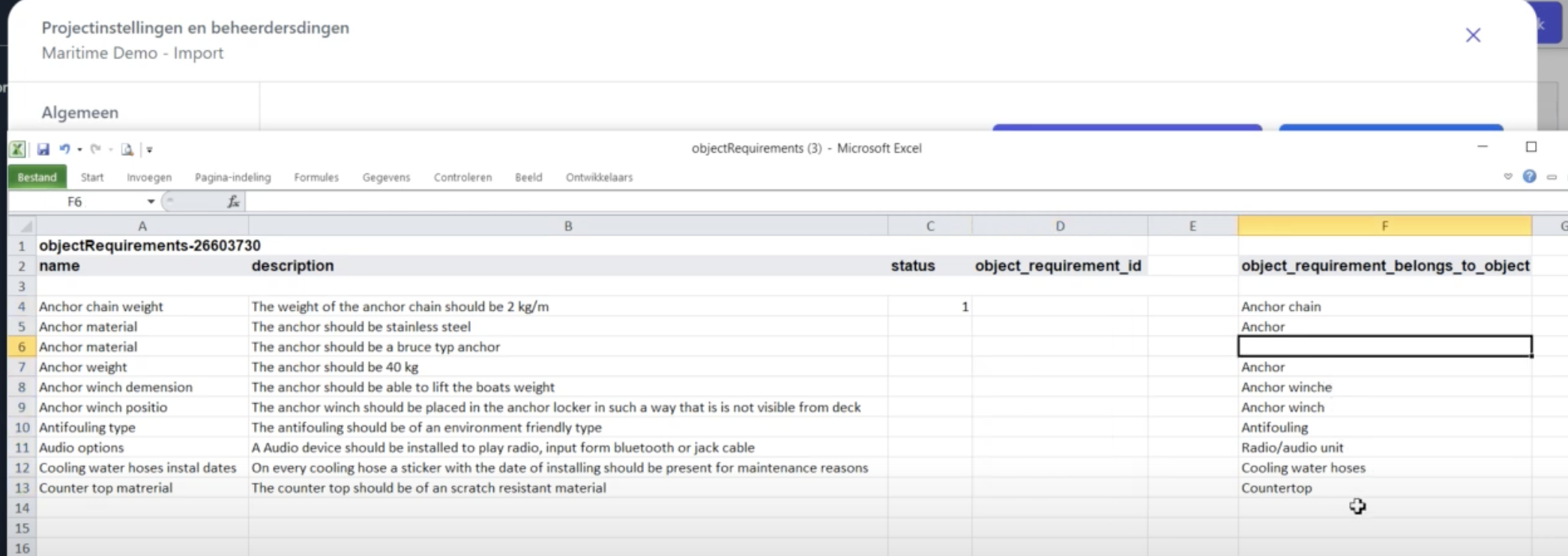
3. Validating the content of the import template
Finally, the upload button can be used to offer the data-filled import template. The offered data is loaded as a preview. Datastorms then validates the content of the file at a number of points.
- Check the offered template: matched the offered import template with the project.
- Controls that also apply to manual entries. If all data in the preview meets the requirements for the respective fields, everything will be colored white. Colors are used to make found errors or points of interest easily findable. Any adjustments can be made directly in the preview.
To illustrate, here are two examples where the import function supports the end user in importing the correct data:
Example 1: The status field is empty in most lines.
The green color indicates that this is not wrong ansich. In the settings of the field there is no indication that it should be filled with a value by default. However, the red field does indicate that the value entered is incorrect. In the preview this can be corrected for both the green field and the red field.
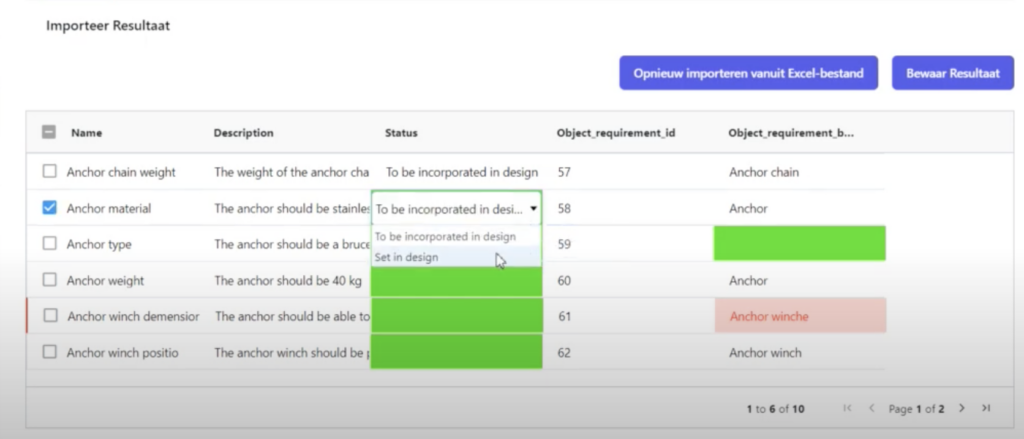
Example 2: The content of the name field must be unique.
The yellow color indicates that the field is correctly filled, but that this value already exists in the dataset or in the database. If no action is taken, the older data will be overwritten. In the preview, the value of the Name can be changed immediately if it does involve new data.
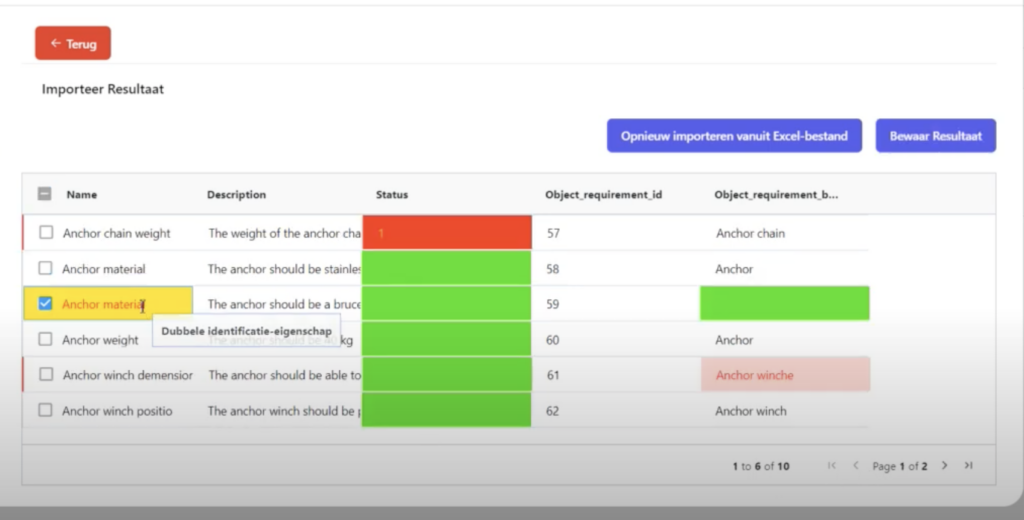
Once all offered data is within the tolerances of the controls or the erroneous lines are removed, the import button becomes available.
Learn more
The import functionality is one of the innovative new features Datastorms has. Discover more of these features: check out here for more information on the powerful reporting feature.